
(Fig. 1: The icon of the HotSync app for macOS)
Back in the day, installing an application on a Palm was simple: double-click the .prc file on the PC, put the Palm into the cradle, press the HotSync button – done. On a current Mac, none of this works anymore. Palm Desktop for Mac OS X is long gone and has never run on Apple Silicon.
After I got the Palm OS toolchain running on macOS, I also wanted to bring the self-built applications onto a real device without detours. The result is a small menu bar app that brings back the old workflow: file into the queue, HotSync button on the Palm, done.
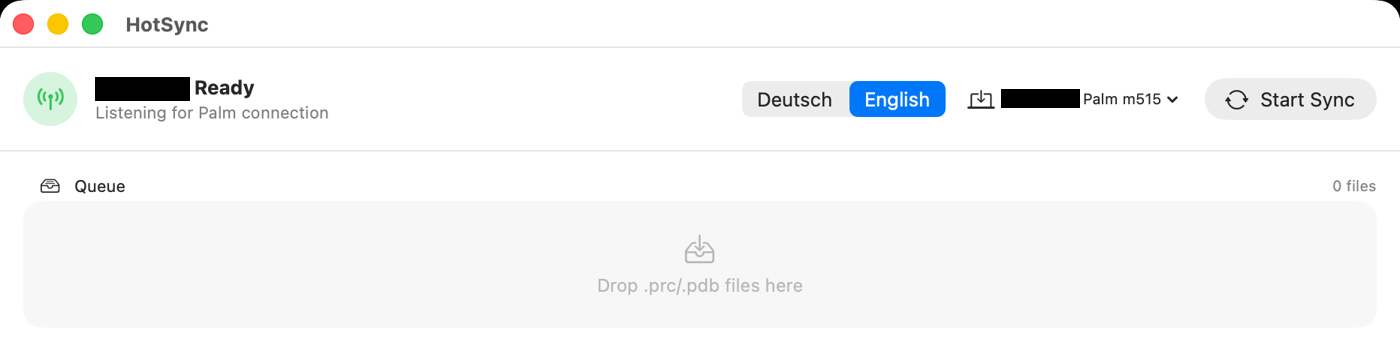
(Fig. 2: The HotSync window: ready, with an empty queue to drop .prc and .pdb files into)
pilot-link on Apple Silicon
The foundation is pilot-link, the classic collection of command line tools for talking to Palm devices. The current version is maintained by David A. Desrosiers on GitHub. Via libusb, it talks to the Palm over USB directly from user space – no kernel driver needed.
Older versions did not build on macOS with Apple Silicon: with a current autoconf, the popt detection in configure.ac produced broken shell code. Since version 0.15, pilot-link builds out of the box – it only needs the right configure options. I tested the following with pilot-link 0.15.1 on Apple Silicon.
First, install the dependencies with Homebrew:
brew install libusb libusb-compat autoconf automake libtool popt readline pkg-config
Then build and install pilot-link into your home directory:
git clone https://github.com/desrod/pilot-link.git
cd pilot-link
sh ./autogen.sh
CPPFLAGS="-I$(brew --prefix)/include" LDFLAGS="-L$(brew --prefix)/lib" \
  ./configure --prefix=$HOME/.local --enable-libusb --enable-conduits
make
make install
--enable-conduits builds the command line tools, which are switched off by default. --enable-libusb enables the USB support; the two flags CPPFLAGS and LDFLAGS are needed so that configure finds the Homebrew libraries.
After that, 36 tools are available in ~/.local/bin/, for example:
# Install an application on the Palm
pilot-xfer -p usb: -i MyApp.prc

# Back up all databases
pilot-xfer -p usb: --backup ~/palm-backup/

# Interactive shell on the Palm
pilot-dlpsh -p usb:
Important: The Palm only shows up on the USB bus while a HotSync is running. So the order is always: start the command on the Mac first, then press the HotSync button on the Palm.
The HotSync app
Typing pilot-xfer commands works, but it is not what HotSync used to feel like. So I wrote a small app in Swift/SwiftUI that sits in the menu bar and takes care of the rest:
- Install queue:
.prcand.pdbfiles can be dragged onto the window, copied into the install folder~/HotSync/<device>/Install/or simply double-clicked in the Finder. - Automatic waiting: As soon as there are files in the queue, the app starts
pilot-xferin the background and waits for the Palm. The menu bar icon changes to an antenna. - Progress: While the transfer runs, a progress bar shows the status. Afterwards, macOS shows a notification and the files are moved to
~/HotSync/<device>/Installed/. - Several devices: Each Palm gets its own profile with its HotSync user name and its own folder under
~/HotSync/. For a new device, the app transfers the user name on the first HotSync. - German and English user interface.
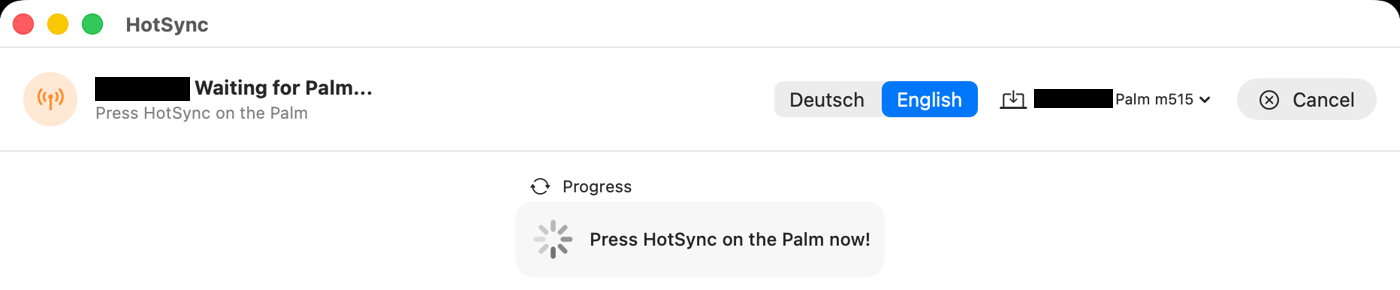
(Fig. 3: Files are queued and pilot-xfer is waiting – now press the HotSync button on the Palm)
pilot-xfer and its libraries (libpisock, libusb, popt) are part of the app bundle, so the app runs without a separate pilot-link installation.
Download
If you just want to use the app: a ready-to-use build for Apple Silicon Macs (macOS 14 or newer) is available on GitHub – HotSync for macOS, latest release. pilot-xfer and all the libraries it needs are included, so there is nothing else to install – no Homebrew, no pilot-link.
Unzip it and move HotSync.app to the Applications folder. The app is not notarized by Apple, so macOS blocks it on the first start: open it once, then click Open Anyway in System Settings → Privacy & Security. Alternatively, in the Terminal:
xattr -dr com.apple.quarantine /Applications/HotSync.app
Building it yourself
You need macOS 14 or newer and the Swift command line tools. The build script expects pilot-xfer in ~/.local/bin/ (see above):
./Scripts/build.sh
open HotSync.app
The app is only signed ad hoc, so there is no Apple developer account needed. On first launch, macOS may ask for confirmation.
To install files by double-click, once: right-click a .prc file, choose "Open With" → "Other...", select HotSync.app and enable "Always Open With".
The source code is on GitHub: github.com/User7142/hotsync-macos
Quirks
pilot-xferdoes not always exit after a successful transfer. The app detects the end of the transfer in the output and then stops the process itself.- If
pilot-xferruns into its timeout, the file is still marked as installed. If in doubt, check on the Palm. - So far, the app only installs files. A real two-way sync of addresses, dates and memos, like the original Palm Desktop, is not included.
- Tested with a Palm m515.
All known issues are listed in the README on GitHub.