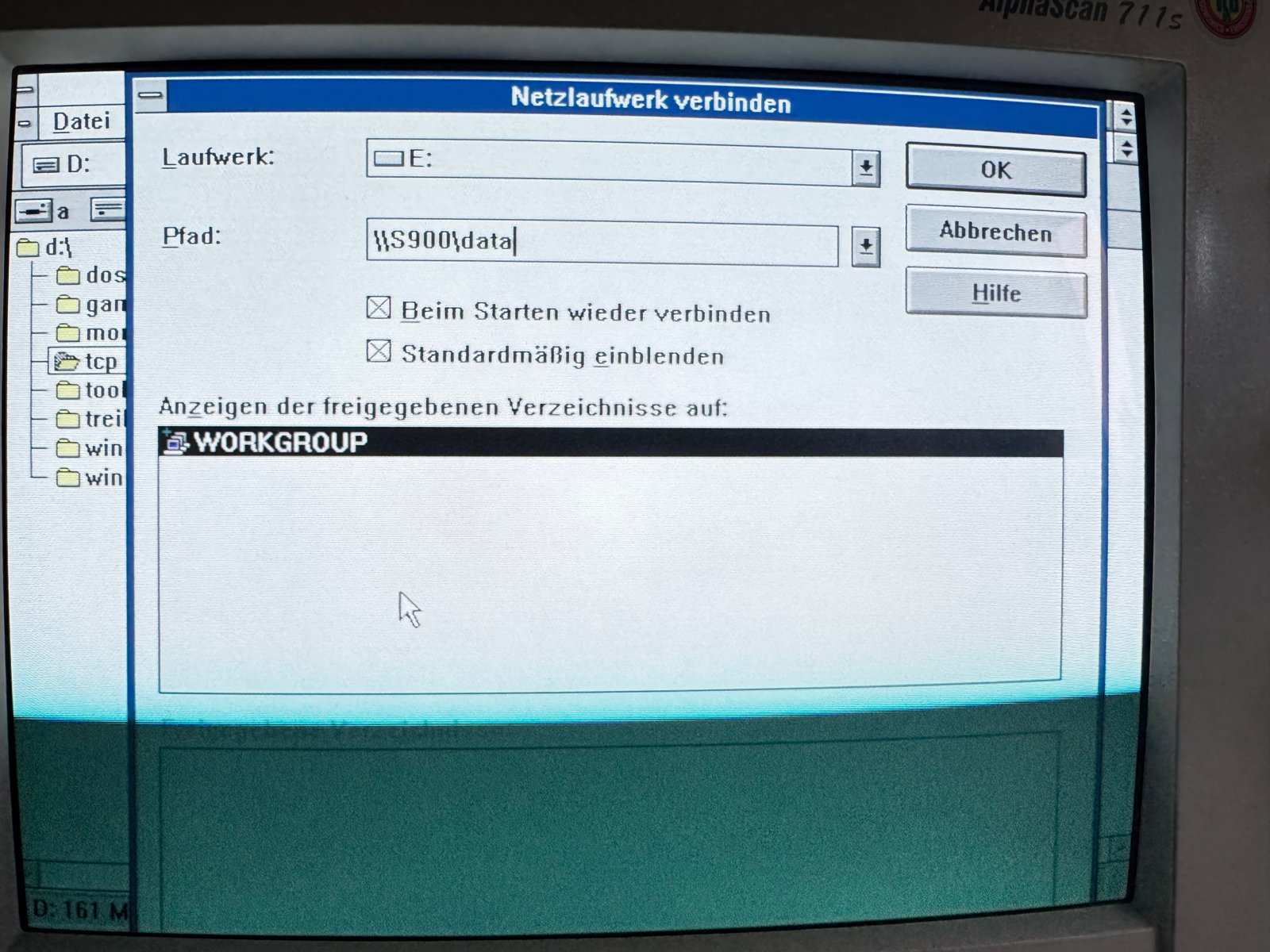
(Fig. 1: Windows for Workgroups 3.11 connects a network drive on the Samba server S900)
Floppy disks are nice, but copying drivers and games to my 386 with them gets annoying quickly. I wanted a network share that both my Mac (macOS 15.2) and my retro PCs with Windows for Workgroups 3.11 can access.
The problem: macOS and Windows 3.11 do not speak the same language anymore. Windows for Workgroups only knows the very first versions of the SMB protocol (SMB1 with the old LAN Manager dialects). macOS dropped SMB1 support a long time ago and only uses SMB2 and SMB3. A direct connection between the two is not possible.
The solution is a small server in between that speaks both: Samba on Linux.
The Server: a Fujitsu Futro S900
For the server, I use a Fujitsu Futro S900, a small thin client from 2011 with an AMD G-T44R CPU. It is quiet, needs little power and is more than fast enough to serve files to a 386. Its network name is S900.
It runs Debian 12 (bookworm) with the Samba package from Debian. The shared files are stored under /media/retro.
Samba Configuration
Since Samba 4.11, SMB1 is disabled by default, and since Samba 4.5, the old LAN Manager and NTLMv1 authentication is disabled, too. Both have to be enabled again for Windows for Workgroups. Samba then serves both worlds at the same time: Windows 3.11 connects with SMB1, the Mac automatically uses SMB3.
This is my configuration, as testparm -s shows it (only the settings that differ from the defaults):
[global]
    client min protocol = CORE
    dns proxy = No
    lanman auth = Yes
    log file = /var/log/samba/log.%I
    logging = file
    map to guest = Bad User
    max log size = 1000
    ntlm auth = ntlmv1-permitted
    obey pam restrictions = Yes
    pam password change = Yes
    security = USER
    server min protocol = LANMAN2
    server role = standalone server
    server signing = No
    server string = S900

[data]
    path = /media/retro
    read only = No
    valid users = thomas
(I left out the panic action, passwd chat and passwd program lines. They are the Debian defaults and have nothing to do with Windows 3.11.)
The settings that matter for Windows for Workgroups:
server min protocol = LANMAN2allows the old SMB1 dialects again. LANMAN2 is enough for Windows for Workgroups 3.11.lanman auth = Yesandntlm auth = ntlmv1-permittedenable the old LAN Manager and NTLMv1 authentication.server signing = No- Windows 3.11 does not know SMB signing.client min protocol = COREonly affects Samba as a client (for examplesmbclientconnecting to old machines), not the server.
Two things are easy to miss:
- Set the password after enabling
lanman auth. Samba only stores the old LAN Manager password hash whenlanman authis enabled at the time the password is set. So runsmbpasswd -a <user>again after changing the configuration. - The NetBIOS name service has to run. Windows for Workgroups finds the server by its NetBIOS name (
S900), not via DNS. This is the job ofnmbd, which is a separate service on most distributions.
Keep the share names short (8 characters or less) and in plain ASCII. Long file names are shown as shortened 8.3 names in Windows 3.11, for example LONGFI~1.TXT.
Security note: SMB1 and LAN Manager authentication are not secure. Only use this in your own home network and never make the share available from the internet.
Windows for Workgroups 3.11
My 386 has a 3Com EtherLink III network card. Windows for Workgroups 3.11 comes with NetBEUI and IPX/SPX, but not with TCP/IP. Microsoft released the free add-on "Microsoft TCP/IP-32 3.11b" for this. I copied it to D:\TCP_IP and installed it in the network setup with "Add protocol" → "Unlisted or updated protocol":
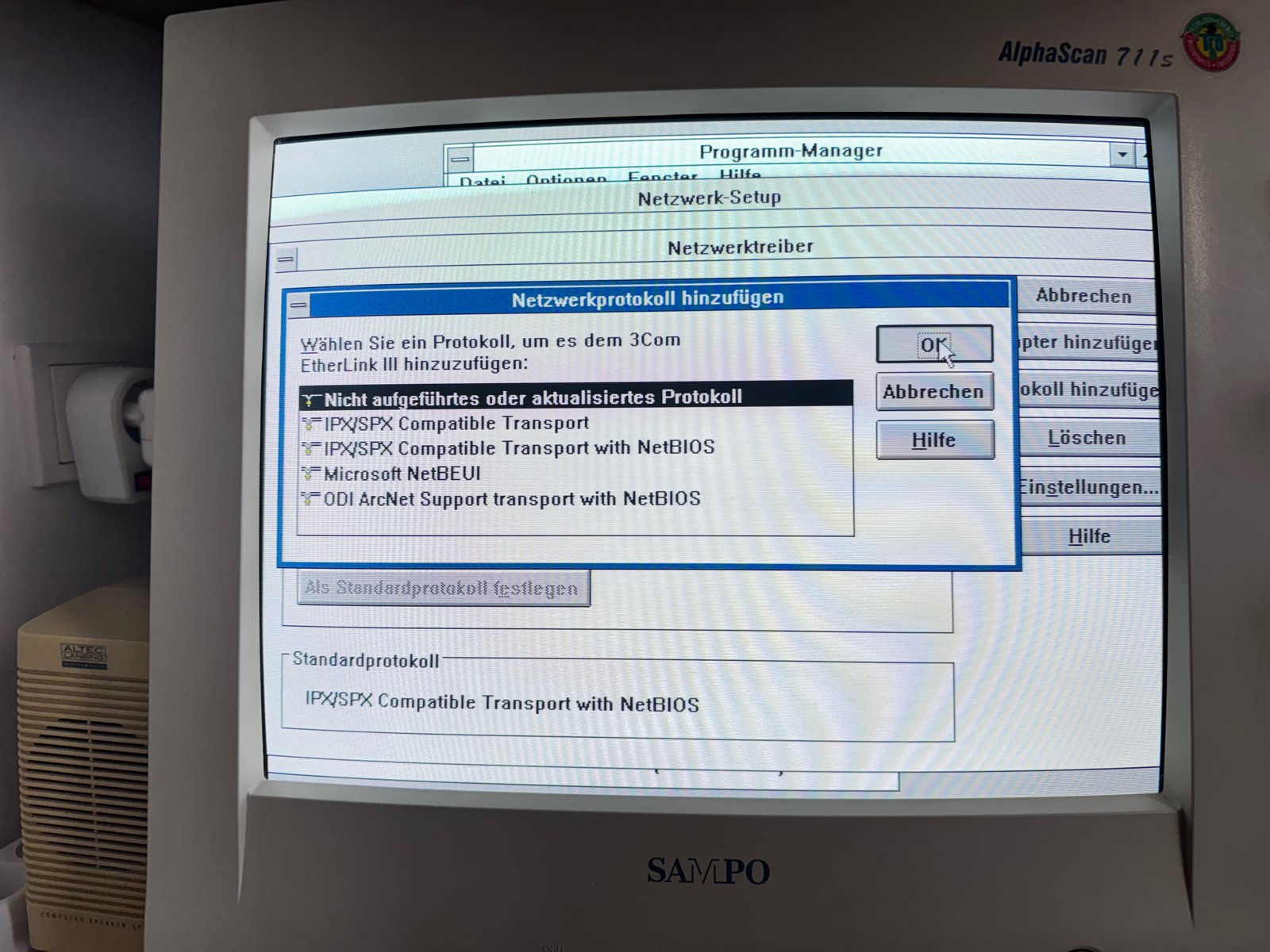
(Fig. 2: Adding a network protocol in the network setup)
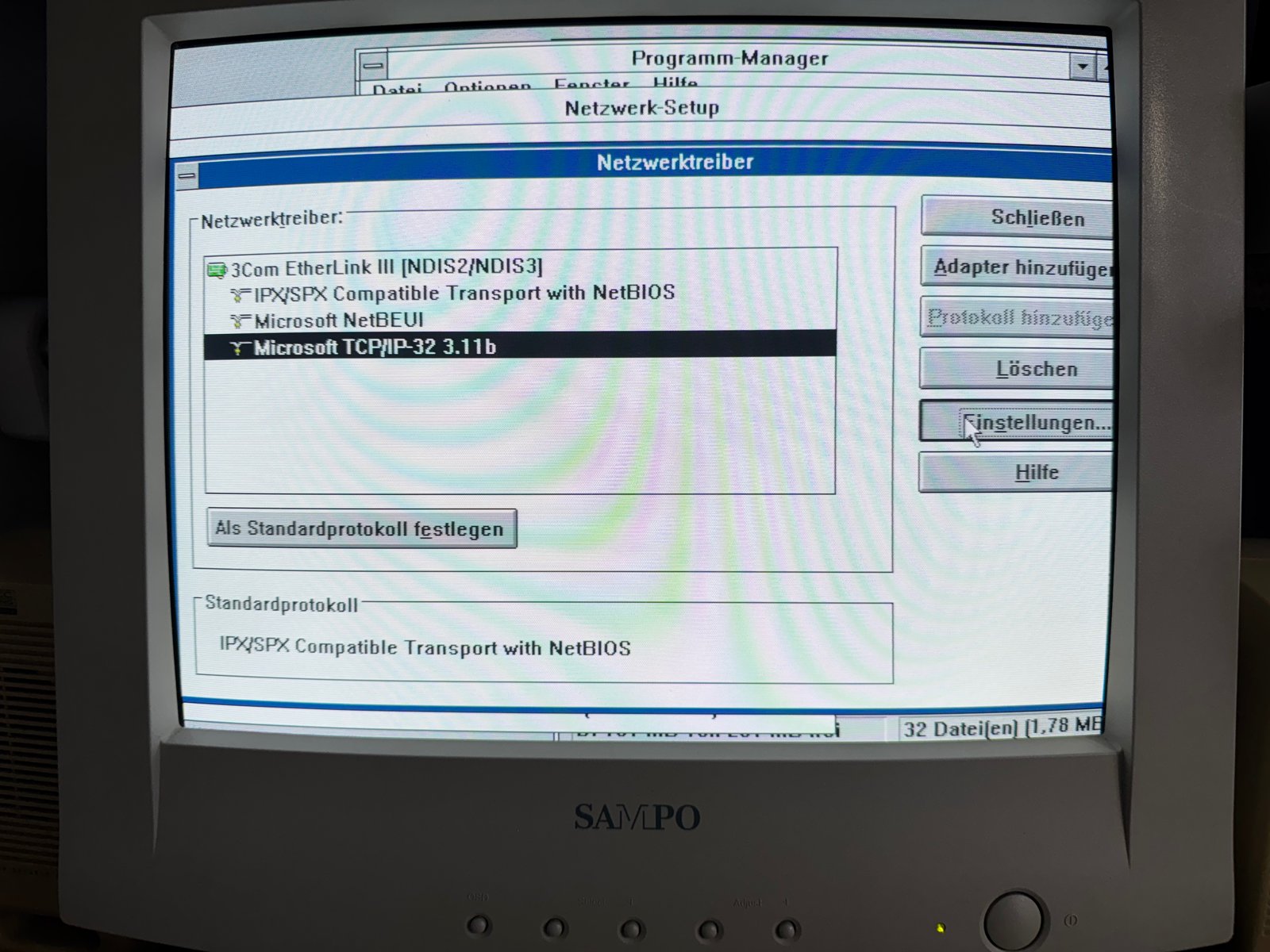
(Fig. 3: The 3Com EtherLink III with Microsoft TCP/IP-32 3.11b)
In the TCP/IP settings, I enabled DHCP, so the 386 gets its IP address automatically from the DHCP server in my network:
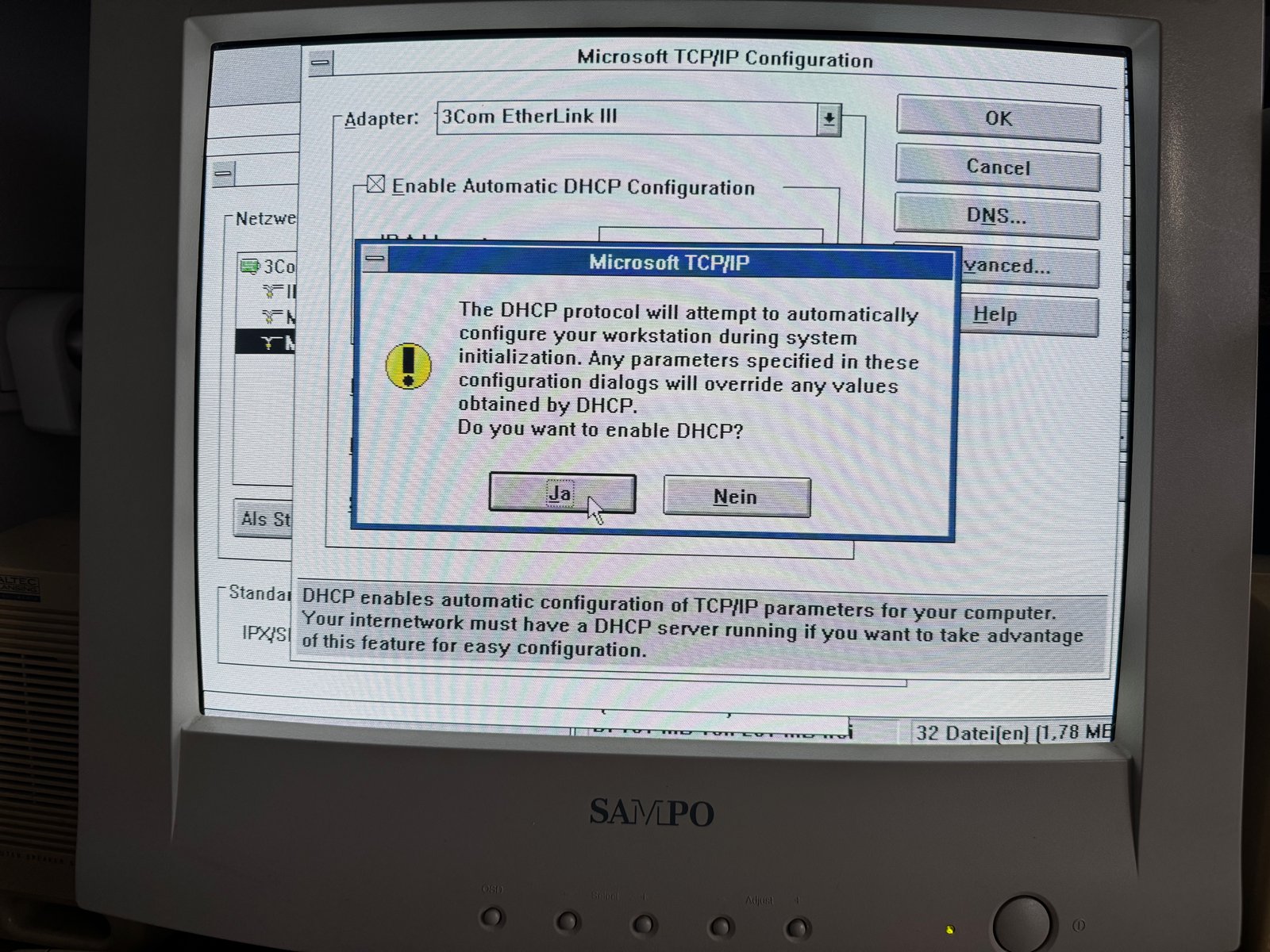
(Fig. 4: Enabling DHCP in the Microsoft TCP/IP configuration)
In the connectivity settings, I set the host name to 386 and added 192.168.0.10 as DNS server.
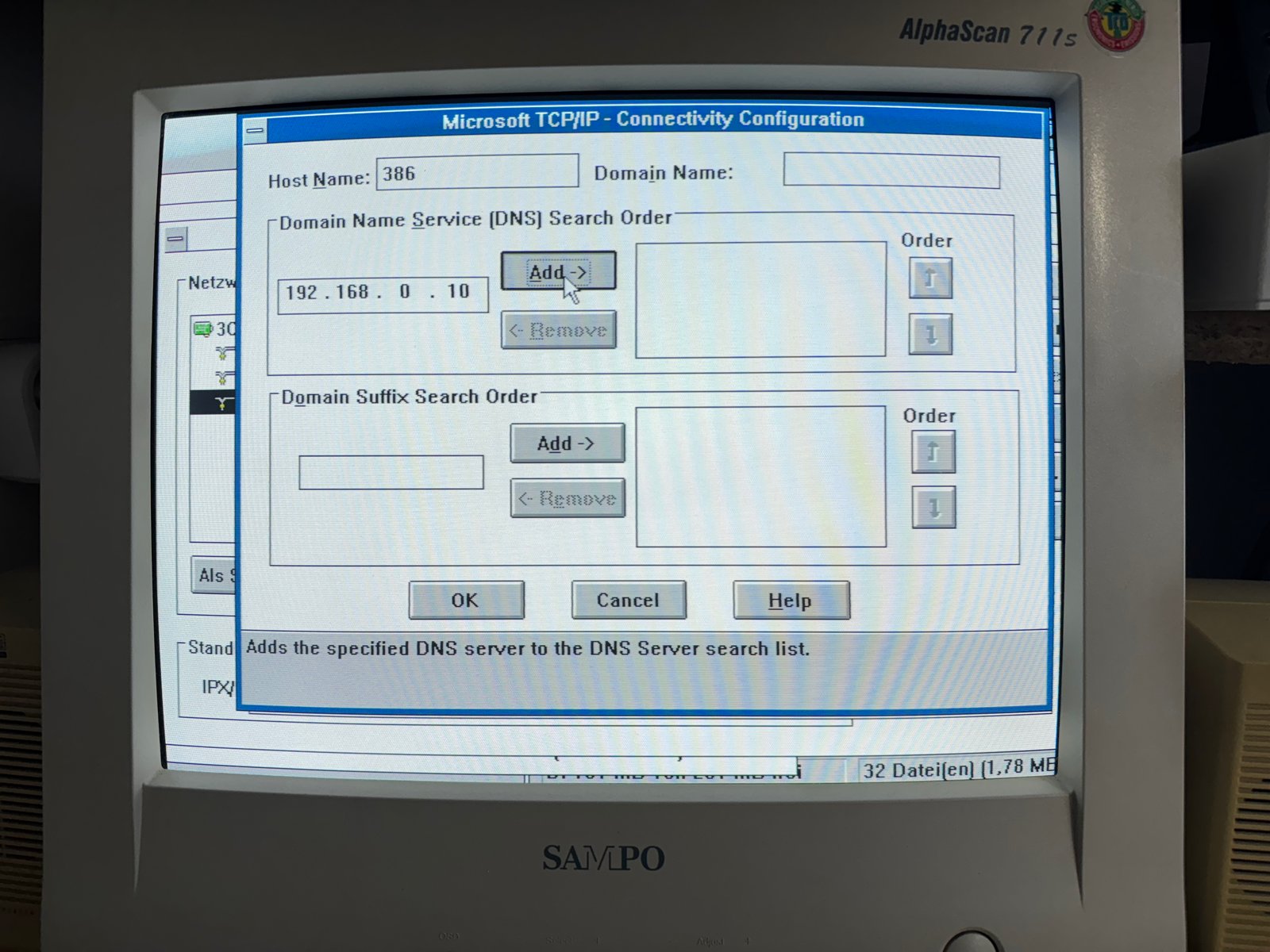
(Fig. 5: Host name and DNS server)
After a restart, a quick test in the MS-DOS prompt shows that the server is reachable:
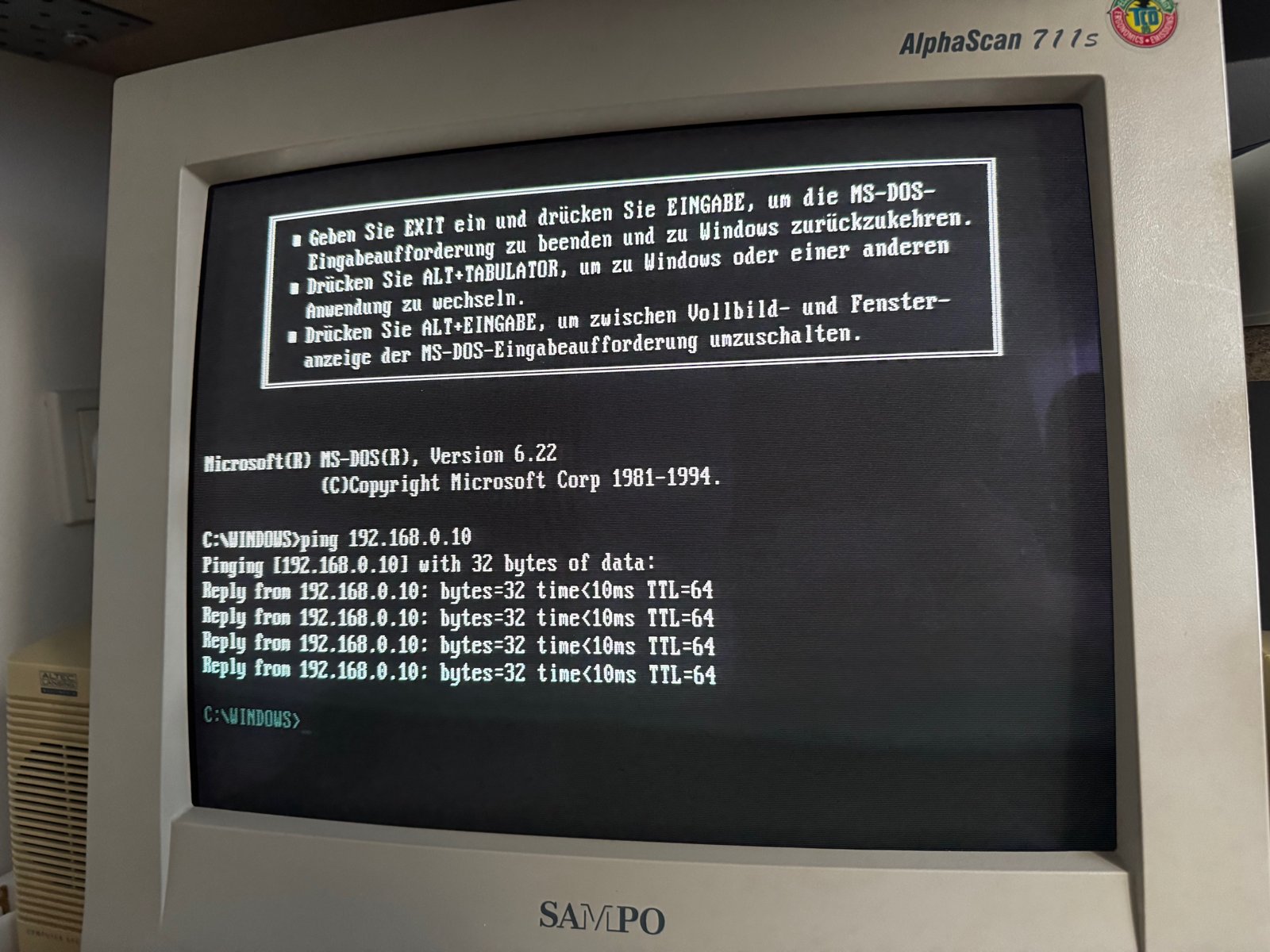
(Fig. 6: Ping to 192.168.0.10)
Connecting the Network Drive
In the File Manager, "Disk" → "Connect Network Drive..." opens the dialog from the top of this article. The path is \\S900\data, and with "Reconnect at startup", the drive is available again after every restart:
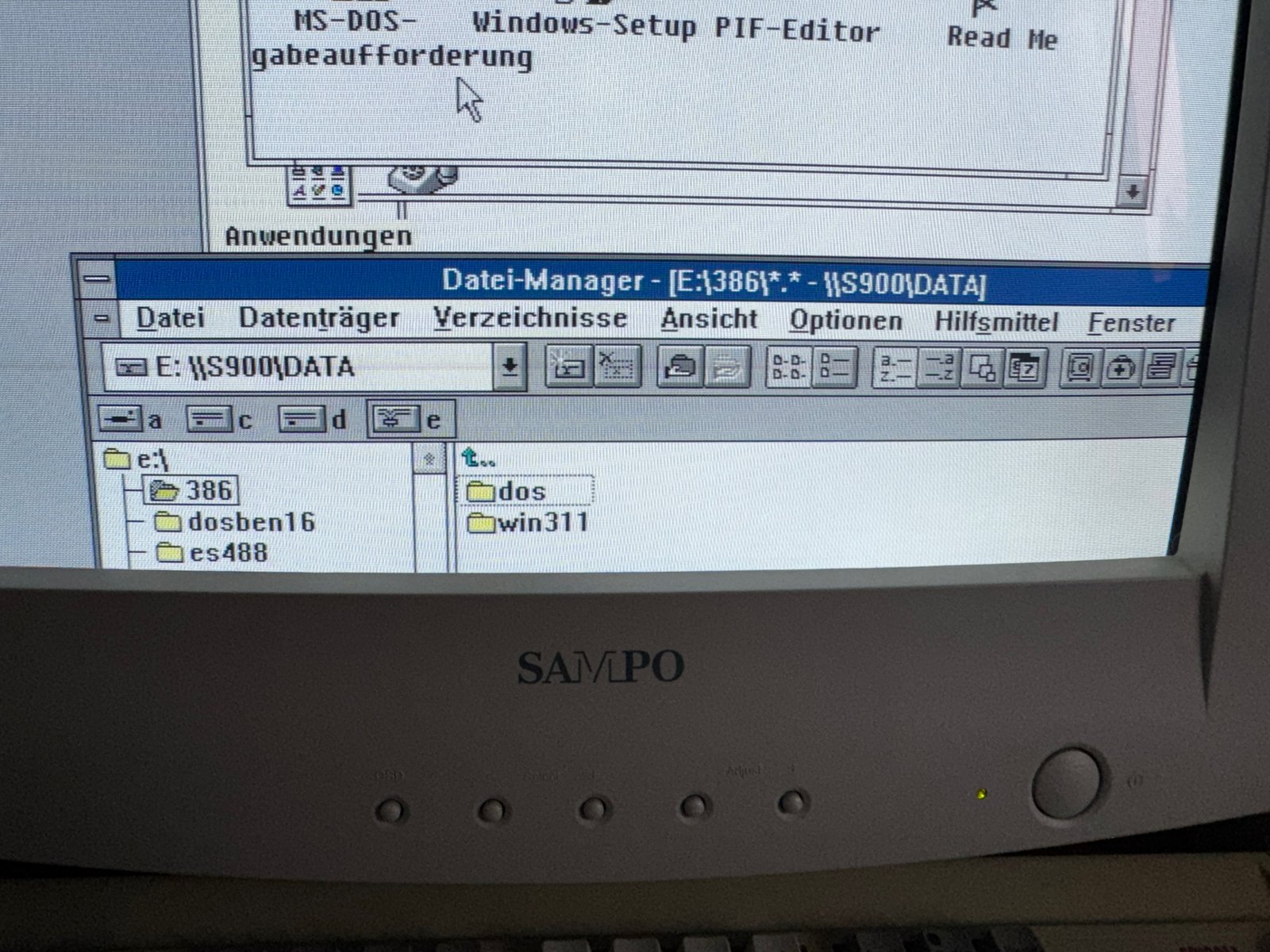
(Fig. 7: The share \\S900\DATA as drive E: in the File Manager)
On the share, I have one folder per retro computer, for example 386, with its DOS and Windows files.
The Mac Side
On the Mac, in the Finder, "Go" → "Connect to Server..." (⌘K) with smb://S900/data connects the same share via SMB3. Now I can download drivers on the Mac, put them into the folder of the 386, and they show up on drive E: right away.
Comments on "Setting up a Samba-Server for Windows 3.11 and macOS 15.2"
Comments are moderated before publication. Only substantive and constructive comments will be approved.